Configuring Multi-Factor Authentication
Multi-Factor Authentication (MFA) enhances account security by requiring users to verify their identity through multiple methods. Instead of relying solely on a password, this process introduces additional checks, making it much harder for unauthorized individuals to gain access. MFA is enabled by default for new tenants and can be configured for existing tenants through the KACE Cloud Admin Portal. MFA applies to users with administrative roles such as System Administrator and Device Administrator.
By default, MFA uses email-based verification for first-time setup. Administrators can later add additional authentication methods, such as authenticator apps or passkeys, to strengthen account security.
Roles and MFA Requirements
- Administrator roles: MFA can be enforced for system administrators and device administrators.
If a device is enrolled with a device admin account with MFA enabled, MFA will be required.
For details about MFA behavior during device enrollment, see MFA Support During Device Enrollment.
Prerequisites
- You must have System Admin role to configure MFA.
- Ensure email infrastructure is active for Email OTP.
- Authenticator apps should be available for users who choose that method.
Enable Multi-Factor Authentication
To enable MFA:
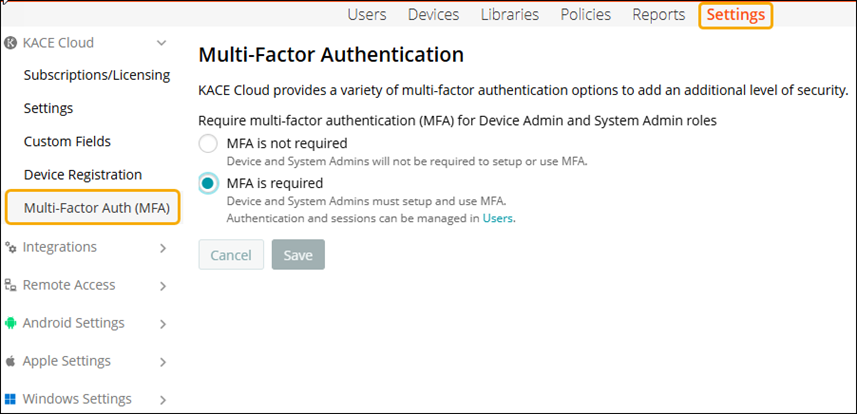
- In top navigation, select Settings > KACE Cloud > Multi-Factor Auth (MFA).
- On the Multi-Factor Authentication page, choose one of the following options:
- MFA is not required: Device and System Admins will not be required to setup or use MFA. They can sign in using only a username and password. MFA setup is optional.
- MFA is required: Device and System Admins must setup and use MFA to access the Admin Portal.

NOTE: If the tenant is not configured to require MFA, administrators can still protect their accounts by setting up MFA methods for their own user accounts. Once MFA is configured for an account, it becomes mandatory for login, regardless of the tenant-level MFA requirement.
- Click Save to apply the settings.
- After enabling MFA, you can configure authentication methods and credentials from the User details page.
For more information on setting the authentication credentials, see Configure Multi-Factor Authentication Methods.
|
|
NOTE: If MFA is disabled later at the tenant level, any previously configured user-level methods (Authenticator App OTP, Passkey/passwordless) will remain in effect until the user removes the methods. |